


En este post crearemos un cliente android para consumir un recurso de un REST API utilizando las librerías GSON y Volley ambas desarrolladas por google que nos sirven para serializar/deserializar objetos java la primera e implementar un cliente Http desde android hacia servidores externos la segunda.
Necesitamos:
Nivel: Intermedio – Avanzado
Tiempo: 15 minutos
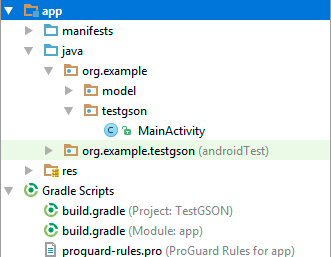
Partiremos de un proyecto android con un plantilla «Empty Activity» y como nombre TestGson (o el nombre que desees darle). A continuación creamos un paquete con el nombre «model» en donde agregaremos algunas otras clases más adelante, tu proyecto debe tener la siguiente estructura:
Agregar librerías Gson y Volley
Podemos agregar librerías de diferentes maneras a un proyecto android studio, en esta ocasión utilizaremos las dependencias.
Abre build.gradle (modelo app) y agrega en el apartado de dependencias:
compile ‘com.google.code.gson:gson:2.8.1’
compile ‘com.mcxiaoke.volley:library:1.0.+’
Ahora te pedirá que sincronices los cambios, presiona «Sync Now» y espera unos segundos.
Servicio Web
Para no alargar el post, utilizaremos un Web Service de pruebas JSONPlaceholder, entre sus muchos recursos que tiene, utilizaremos https://jsonplaceholder.typicode.com/posts/1 el cual responde un JSON de un post (no nos interesa el contenido más si la forma JSON)
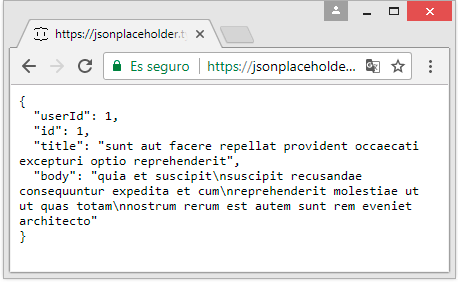
Si bien podemos trabajar con este objeto JSON es mucho mejor si convertimos primero este en un objeto java y es ahí donde entra GSON, pero antes debemos crear una clase «Post.java» en el paquete «model» de la siguiente manera
public class Post{

    private int userId;
    private int id;
    private String title;
    private String body;

    public Post() {
    }

    public int getUserId() {
        return userId;
    }

    public void setUserId(int userId) {
        this.userId = userId;
    }

    public int getId() {
        return id;
    }

    public void setId(int id) {
        this.id = id;
    }

    public String getTitle() {
        return title;
    }

    public void setTitle(String title) {
        this.title = title;
    }

    public String getBody() {
        return body;
    }

    public void setBody(String body) {
        this.body = body;
    }

}
Custom Request
Para que Volley pueda reconocer nuestro clase Post.java (no confundir con POST) debemos implementar una solicitud personaliza, la web de developers de android nos proporciona un ejemplo:
import com.android.volley.AuthFailureError;
import com.android.volley.NetworkResponse;
import com.android.volley.ParseError;
import com.android.volley.Request;
import com.android.volley.Response;
import com.android.volley.toolbox.HttpHeaderParser;
import com.google.gson.Gson;
import com.google.gson.JsonSyntaxException;
import java.io.UnsupportedEncodingException;
import java.util.Map;

/**
 * @see https://developer.android.com/training/volley/request-custom.html#custom-request
 * */
public class GsonRequest<T> extends Request<T> {

    private final Gson gson = new Gson();
    private final Class<T> clazz;
    private final Map<String, String> headers;
    private final Response.Listener<T> listener;

    /**
     * Make a GET request and return a parsed object from JSON.
     *
     * @param url URL of the request to make
     * @param clazz Relevant class object, for Gson's reflection
     * @param headers Map of request headers
     */
    public GsonRequest(String url, Class<T> clazz, Map<String, String> headers,
                       Response.Listener<T> listener, Response.ErrorListener errorListener) {
        super(Method.GET, url, errorListener);
        this.clazz = clazz;
        this.headers = headers;
        this.listener = listener;
    }

    @Override
    public Map<String, String> getHeaders() throws AuthFailureError {
        return headers != null ? headers : super.getHeaders();
    }

    @Override
    protected void deliverResponse(T response) {
        listener.onResponse(response);
    }

    @Override
    protected Response<T> parseNetworkResponse(NetworkResponse response) {
        try {
            String json = new String(
                    response.data,
                    HttpHeaderParser.parseCharset(response.headers));
            return Response.success(
                    gson.fromJson(json, clazz),
                    HttpHeaderParser.parseCacheHeaders(response));
        } catch (UnsupportedEncodingException e) {
            return Response.error(new ParseError(e));
        } catch (JsonSyntaxException e) {
            return Response.error(new ParseError(e));
        }
    }
}
Esta clase GsonRequest, la creamos en el paquete «model«.
Permisos
Necesitamos agregar al archivo manifest el siguiente permiso:
<uses-permission android:name=»android.permission.INTERNET»/>
Interfaz de usuario
Abrimos el archivo activity_main.xml y reemplazamos el contenido por:
<?xml version="1.0" encoding="utf-8"?>
<LinearLayout xmlns:android="http://schemas.android.com/apk/res/android"
    xmlns:tools="http://schemas.android.com/tools"
    android:layout_width="match_parent"
    android:layout_height="match_parent"
    android:paddingBottom="@dimen/activity_vertical_margin"
    android:paddingLeft="@dimen/activity_horizontal_margin"
    android:paddingRight="@dimen/activity_horizontal_margin"
    android:paddingTop="@dimen/activity_vertical_margin"
    android:orientation="vertical"
    tools:context="org.example.testgson.MainActivity">

    <Button
        android:layout_width="match_parent"
        android:layout_height="wrap_content"
        android:text="GET POST #1"
        android:id="@+id/button" />

    <TextView
        android:layout_width="match_parent"
        android:layout_height="wrap_content"
        android:text="title"
        android:gravity="center"
        android:textSize="24sp"
        android:textStyle="bold"
        android:id="@+id/textView2"
        android:layout_gravity="center_horizontal" />

    <TextView
        android:layout_width="match_parent"
        android:layout_height="wrap_content"
        android:text="content post"
        android:textSize="18sp"
        android:id="@+id/textView3"
        android:layout_gravity="center_horizontal" />
</LinearLayout>
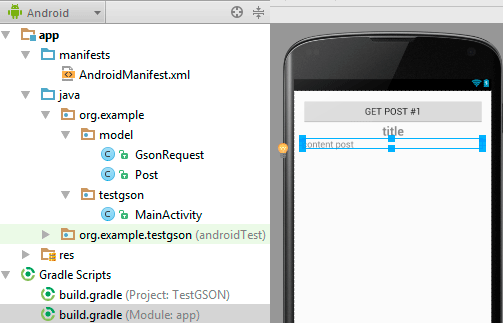
Nuestra aplicación debe tener la siguiente forma hasta el momento:
Ya para terminar, debemos implementar el Request en la clase MainActivity de la siguiente forma:
import android.support.v7.app.AppCompatActivity;
import android.os.Bundle;
import android.view.View;
import android.widget.Button;
import android.widget.TextView;
import com.android.volley.RequestQueue;
import com.android.volley.toolbox.Volley;
import com.android.volley.Response;
import com.android.volley.VolleyError;
import org.example.model.GsonRequest;
import org.example.model.Post;

public class MainActivity extends AppCompatActivity {

    private RequestQueue requestQueue;
    private Button button;
    private TextView textView2;
    private TextView textView3;

    @Override
    protected void onCreate(Bundle savedInstanceState) {
        super.onCreate(savedInstanceState);
        setContentView(R.layout.activity_main);

        //controles
        button = ((Button) findViewById(R.id.button));
        textView2 = ((TextView) findViewById(R.id.textView2));
        textView3 = ((TextView) findViewById(R.id.textView3));
        //request
        requestQueue= Volley.newRequestQueue(MainActivity.this);
        button.setOnClickListener(
                new View.OnClickListener() {
                    public void onClick(View view) {
                        button.setEnabled(false);
                        GsonRequest<Post> gsonRequest = new GsonRequest(
                                "https://jsonplaceholder.typicode.com/posts/1",//URL
                                Post.class,//Clase a la que se convertira el JSON
                                null,//encabezado no necesitamos
                                createRequestSuccessListener(),//listener
                                createRequestErrorListener()//listener
                        );
                        requestQueue.add(gsonRequest);
                    }
                });
    }

    private Response.Listener<Post> createRequestSuccessListener() {
        return new Response.Listener<Post>() {
            @Override
            public void onResponse(Post response) {
                try {
                    button.setEnabled(true);
                    //el post obtenido del REST se llena en la interfaz
                    textView2.setText(response.getTitle());
                    textView3.setText(response.getBody());
                } catch (Exception e) {
                    e.printStackTrace();
                }
            }
        };
    }

    private Response.ErrorListener createRequestErrorListener() {
        return new Response.ErrorListener() {
            @Override
            public void onErrorResponse(VolleyError error) {
                error.printStackTrace();
            }
        };
    }

}
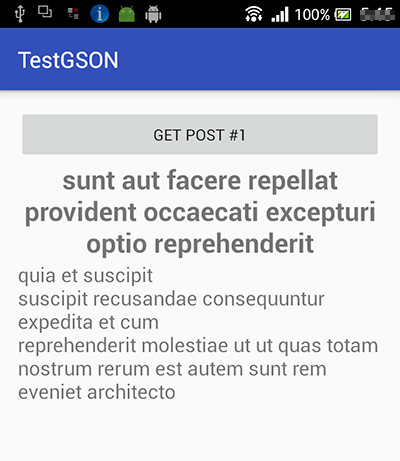
ejecutamos el proyecto, presionamos el botón y obtendremos:
enjoy!!!

En ocasiones debemos insertar varios registros a nuestra base de datos desde nuestra aplicación java y lo que usualmente[...]

En este post crearemos una aplicación android que nos permitirá compartir una imagen con Facebook, whatsapp, bluetooth,[...]
El laberinto del terror es un juego en el que haciendo uso del ratón y de tu pulso de borracho debes cruzar distintos la[...]
En este tutorial crearemos una aplicación sencilla para activar y desactivar el bluetooth de nuestros teléfonos intelige[...]

De las pocas herramientas disponibles entre librerías, frameworks, engines, etc para el desarrollo de videojuegos en len[...]
En este post vamos a construir un Servicio Web bajo el protocolo SOAP (Simple Object Access Protocol) el cual básicament[...]

